
Usage
There are many ways to use the extension depending on your preference.
Toolbar Popup
The popup is accessible from your browsers extension toolbar icon. You may need to pin the icon to the toolbar depending on your browser.
The popup can also be shown using a keyboard shortcut, the context menu, or the side panel.
Popup Features
- Show All Buttons or Only Site/Browser
- Set Default to Site or Browser
- Set Cache Options On-The-Fly
- Show Estimated Cache Size
- Quick Options Overlay
For more details see the options page.
Context Menu
The right-click context menu can be enabled/disabled from the options page. You can also choose which items show up on the context menu.
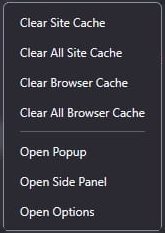
💡 If you choose only 1 item to be displayed, there won't be a submenu to navigate.
Keyboard Shortcuts
You can assign keyboard shortcuts to all cache clearing functions, and activation of popup and panels.
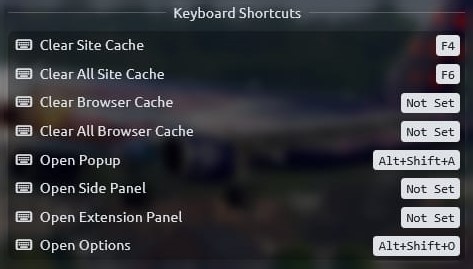
This varies based on your browser.
- Google Chrome:
chrome://extensions/shortcuts - Mozilla Firefox: https://mzl.la/3Qwp5QQ
For more details see the options page.
Side Panel
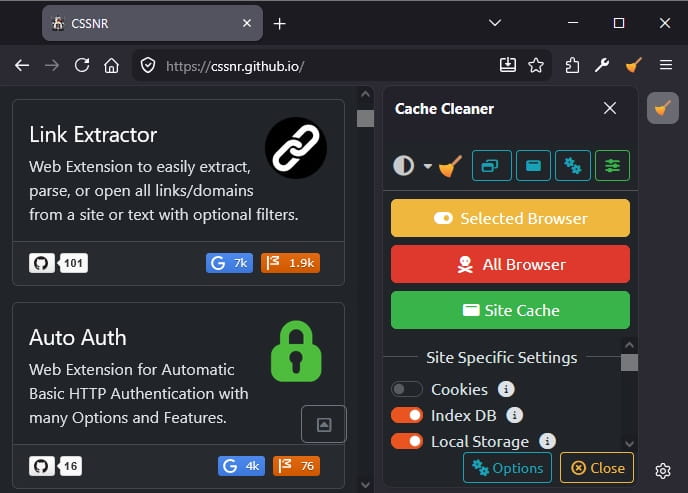
While you can't view or clear the site cache directly, you can toggle the popup to manage site cache. The side panel can be toggled a keyboard shortcut, or the context menu.
Otherwise, this includes all other features in the popup.
Extension Panel
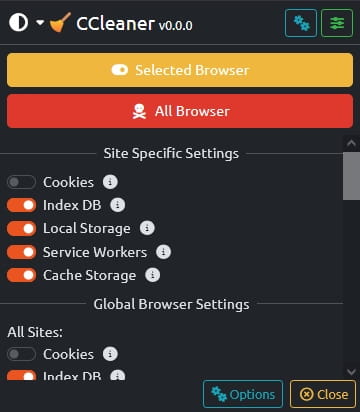
This is a pop-out panel in its own window that lets you manage browser cache only. The extension panel can be toggled a keyboard shortcut, or the context menu.
💡 If you need help using the extension, support is available...